 Accountant
User manual
Accountant
User manual
Loans
Build a repayment schedule and split each payment into principal and interest.
What you'll do: set up a repayment plan for a loan or mortgage, so each payment is split correctly into principal (paying down the debt) and interest (an expense).
Before you start
You need:
- an active Liability account in the Mortgage loan or Other loans category
- a positive balance on it: what you still owe, entered as the opening balance or recorded with a transaction
- an Expense account in the Finance charges category for the interest (you can create one during setup)
See Setting up accounts.
Set up loan payments
- Open the loan account: Accounts › Liabilities, then tap the loan.
- Tap Set up loan payments. "Start with what you still owe, then enter the terms for your remaining payments." The outstanding principal comes From your posted account balance.
- Under Loan terms, enter:
- Annual interest rate (%) from your lender. Use 0 for an interest-free loan.
- Interest calculation: Reducing balance (interest on the remaining principal; most bank loans and mortgages) or Flat / add-on interest (interest on the starting principal, spread evenly).
- Under Repayment terms, enter:
- Payment frequency: Monthly, Every two weeks or Weekly.
- Remaining installments: how many payments are left, including the next one.
- Next due date.
- Under Payment accounts, choose the Interest expense account (under Finance charges; tap Create expense account if you don't have one) and the account you usually Pay from.
- Tap Preview repayment schedule and review the installments, interest and payoff date. Swipe sideways to see all the columns.
- Tap Apply schedule to account.
- Tap Save on the account. The plan isn't applied until you do: "Loan plan ready. Tap Save in the toolbar to save the account and apply the plan."
The schedule is an estimate. It uses regular periods and a fixed annual rate, and doesn't calculate fees or daily interest. Check principal and interest against your lender's amounts when you record each payment. For flat-rate loans, you can enter the Lender's remaining interest if it differs from the estimate.
Record a payment
Open the loan account and tap Loan overview.
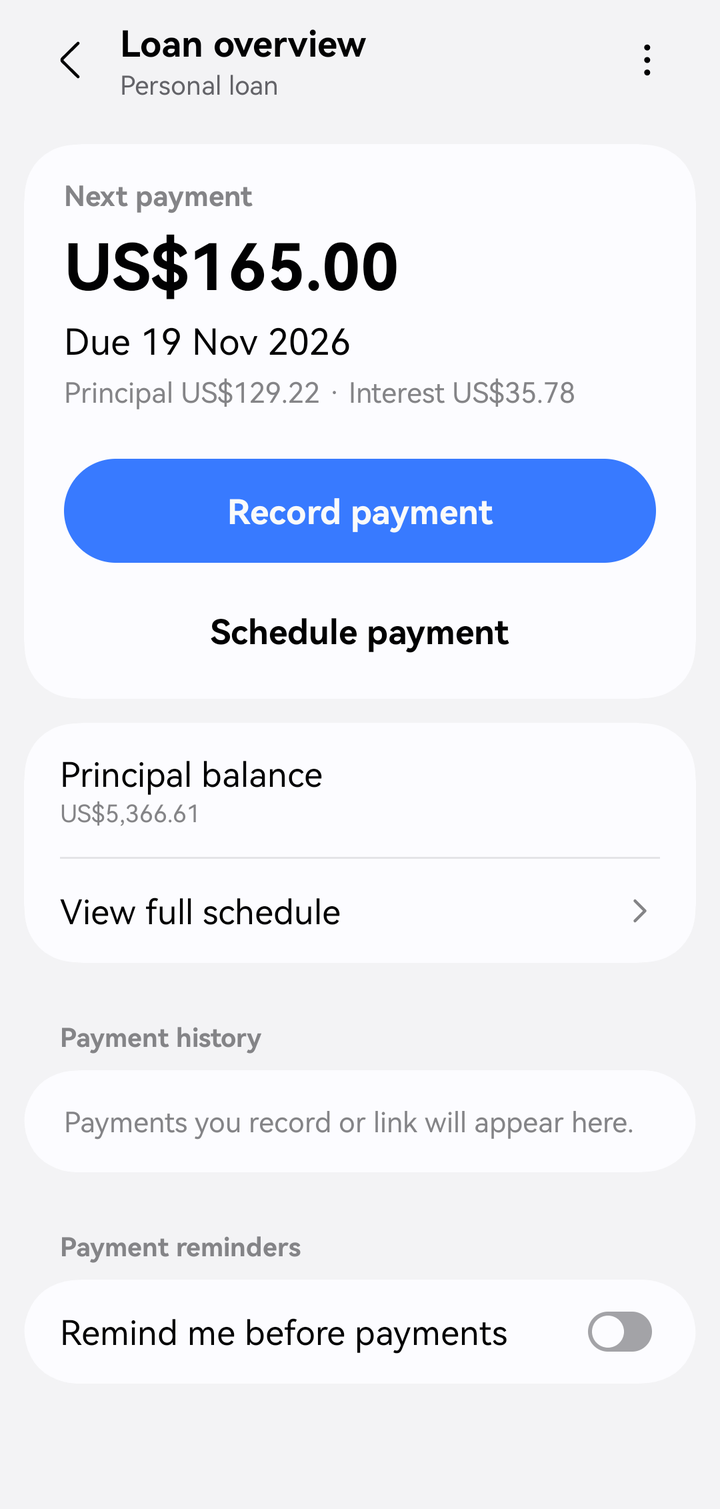
Loan overview
- Record payment pays the next installment now, already split into principal and interest. Check it against your lender's figures and save.
- Schedule payment creates one scheduled payment for the due date. Review its amount and posting options before saving. View full schedule shows every installment with its status (Paid, Overdue, Pending). Payment history lists what you've paid. Turn on Remind me before payments to get a notification before each due date.
Extra payments and changed terms
Tap ⋮ › More actions in Loan overview. The Manage loan menu has:
- Extra principal payment: pay down extra principal. You can review the remaining schedule after saving the payment.
- Adjust remaining payments: recalculate after an extra payment or a change from your lender. Choose Keep payment, finish sooner or Keep payoff date, reduce payments. Previous payments stay in your history.
- Disable payment management: stop reminders and payment actions. Your schedule and payment history are kept.
If the balance or payment amounts change, Loan overview shows "The balance or payment amounts have changed. Review the repayment plan." and offers Review repayment plan.
Before you revise a plan, resolve any overdue, partially paid or pending payments, and link any payments listed under Payments to review. To link a payment you recorded yourself, use Link to installment.