 Accountant
User manual
Accountant
User manual
Account categories
Group similar accounts together, for every account type.
An account category is a group of similar accounts, like a folder. It sits between the account type and your accounts:
Account type › Account category › Account
Expense › Household › Groceries, Apartment rent, Clothing
Asset › Cash in bank › Everyday checking, Emergency savings
What a category is, and isn't
- A category is not an account. You don't record money in a category. Groceries is an account: it's where your grocery spending goes, and it can have its own budget. Household is the category that groups Groceries with your other household accounts.
- Categories aren't only for expenses. Every account type has them. Your bank accounts are grouped under Cash in bank, your cards under Credit card, and your salary under Work.
- Each category belongs to one account type. A category for expenses can only hold expense accounts, and a category for assets can only hold asset accounts.
Coming from another money app? What it calls a "category", like Food or Transport, is usually what Accountant calls an expense account. Create those as accounts, then use categories to group them if you like. See Setting up accounts.
Why categories are useful
- Tidy lists. On the Accounts screen, accounts are listed under their category headings, in the order you choose.
- Clearer reports. Reports and the Home widgets group accounts by category. For example, Expenses by category on Home shows how much went to Household in total, across all its accounts.
- Special features. Some categories unlock tools for the accounts in them (see below).
See Setting up accounts for the categories you start with.
Add a category
You add categories from the account editor:
- Add or edit an account. See Setting up accounts.
- Tap Category. The Select category list shows the categories for that account type.
- Tap +.
- Enter the Category name, and optionally a Category description (optional).
- Tap Save, then choose the new category for your account.
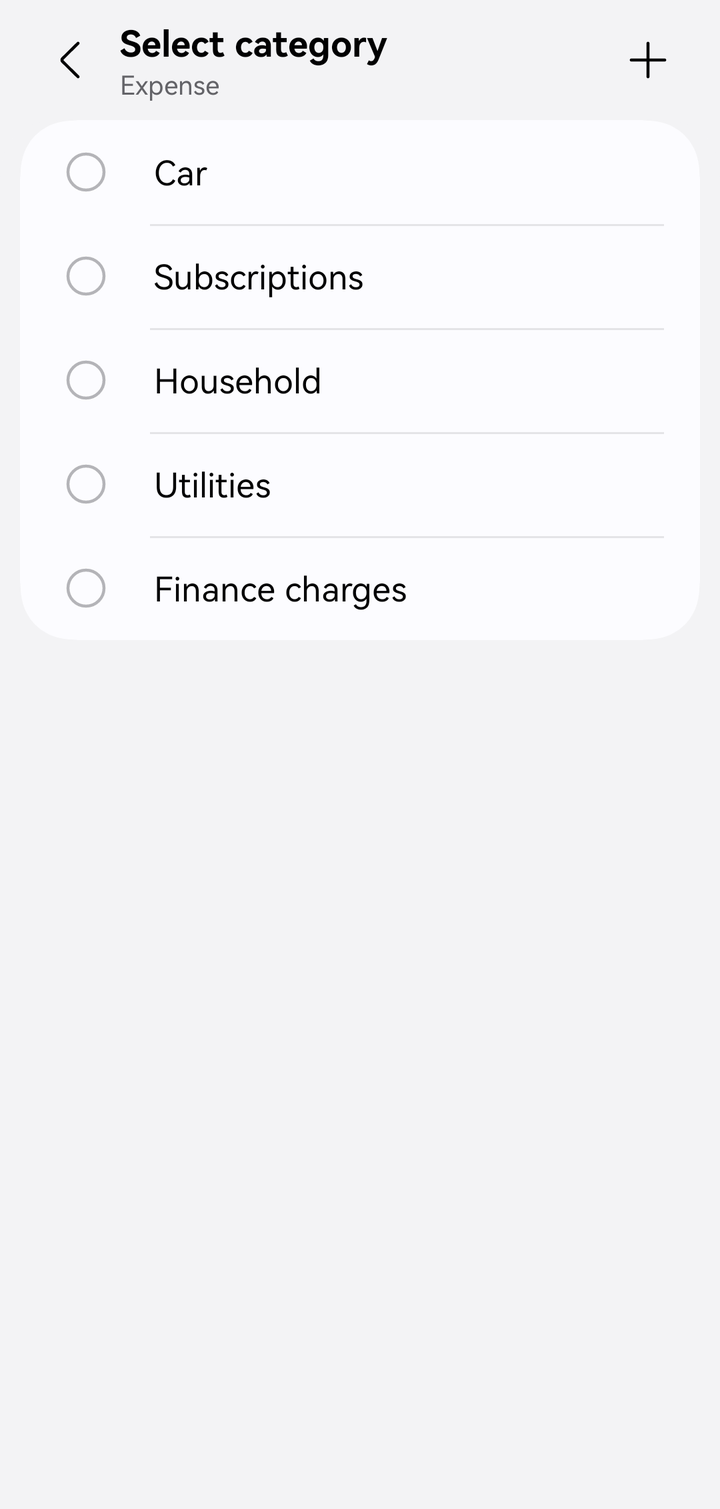
Choosing a category for an expense account
Move accounts to another category
In Accounts, touch and hold an account to start selecting, select the ones to move, then tap Change category.
Manage categories
In Accounts, tap ⋮ › Manage categories to see all categories of each account type in one place.
- Reorder: drag a category by its handle. "Drag to change the order in Accounts." The same order is used when you pick an account for a transaction. Clear the search first.
- Search: tap 🔍 to find a category by name, or use voice search.
- Add: tap Add category.
- Edit: tap a category to rename it or change its description. The editor shows how many accounts use it ("Used by 3 accounts").
- Delete: a category no account uses ("Not used by any account") can be deleted. One that's in use can't, and its account type can't be changed either.
You can also tap a category's heading in Accounts, the label above its accounts, to edit it.
To retire a category, switch it to Inactive. "Inactive categories can't be selected for accounts. Existing accounts keep their category."
Categories with a special role
A few of the default categories unlock tools for the accounts inside them:
- Accounts in Credit card can track statements, due dates and payments. See Credit cards.
- Accounts in Mortgage loan or Other loans can track a repayment schedule. See Loans.
- Loan interest is recorded in an expense account in Finance charges.
Keep your cards and loans in these categories so the tools stay available.