 Accountant
User manual
Accountant
User manual
Navigating the app
Where everything is, on phones and on larger screens.
What you'll learn: the main screens, the + button, and where each menu lives.
The main screens
| Screen | What it's for |
|---|---|
| Home | Your dashboard: income and expenses, net worth, budgets, credit cards, AI insights and more. See Home dashboard. |
| Transactions | Everything you've recorded. The Posted tab lists recorded transactions; Scheduled lists upcoming ones. |
| Accounts | Your chart of accounts, in four tabs: Assets, Liabilities, Income and Expenses. |
| Reports | Net worth, Profit & loss, Budget and Cash flow. |
| Savings goals | Targets you're saving toward. |
| Subscriptions | Your repeating charges, with what they cost a month and a year. See Subscriptions. |
| Settings | Premium, currency, language, app lock, AI, alerts, sync, backups and more. |
On a phone
The bottom bar shows Home, Transactions and More. Tap More to open the rest: Reports, Accounts, Savings goals, Subscriptions and Settings. On wider phones, one more of these appears directly in the bar.
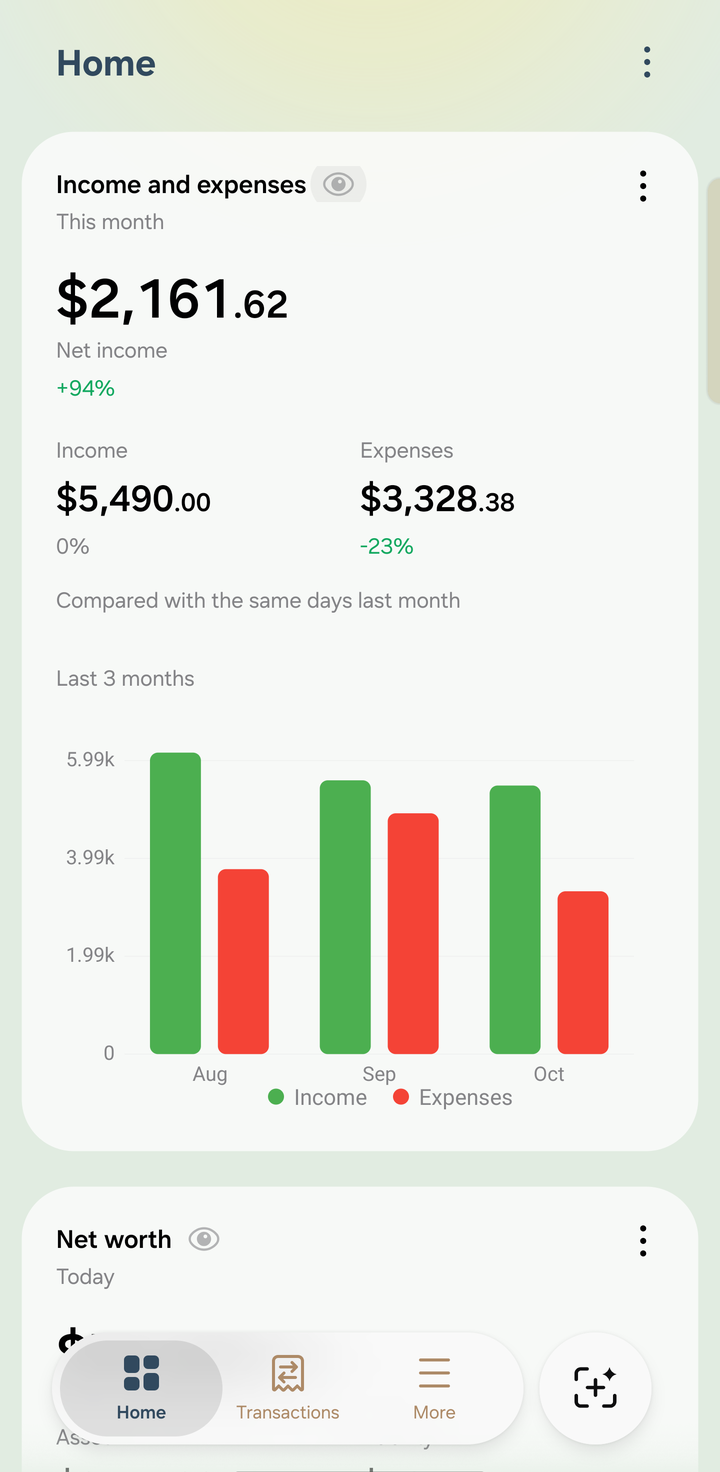
The bottom bar, with the + button on the right
On a tablet, foldable or in landscape
A navigation drawer on the side lists Home, Transactions, Accounts, Reports, Savings goals and Subscriptions, with Accountant settings at the top. The ⓘ button in the drawer header opens About Accountant.
The + button
The round + button, next to the bottom bar, is on every main screen. Tap it to open Transaction shortcuts:
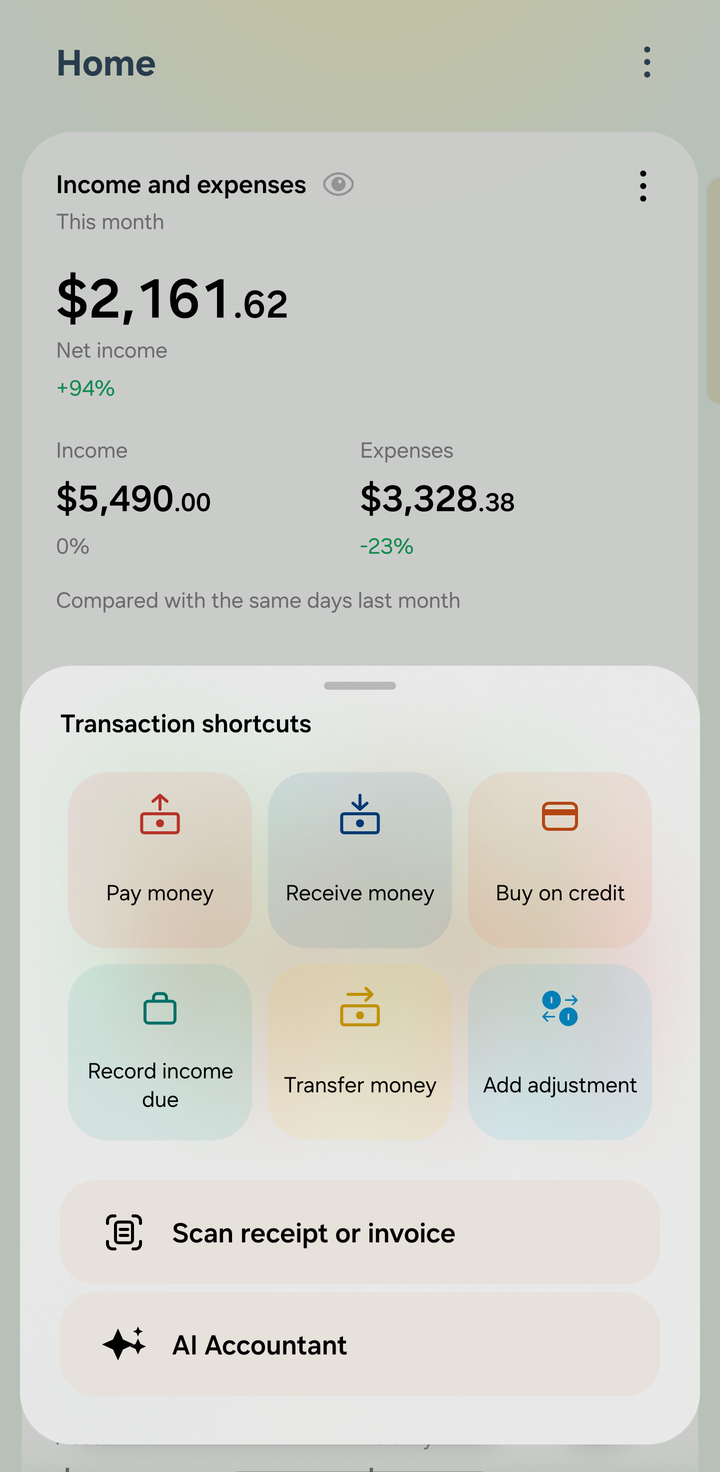
Transaction shortcuts
- Six shortcuts for the six kinds of transactions: Pay money, Receive money, Buy on credit, Record income due, Transfer money and Add adjustment. Touch and hold one to see what it's for. See The six transaction types.
- Scan receipt or invoice turns a photo into a draft transaction. See Scanning receipts.
- AI Accountant opens the chat. See Using AI Accountant.
Menus worth knowing
Most screens have a ⋮ menu at the top right.
| Screen | In the ⋮ menu or toolbar |
|---|---|
| Home | Add widgets, Reorder home widgets, and Set up AI model (until AI is set up) |
| Transactions | 🔍 search (names, memos and labels), the filter (accounts and Labels), Drafts, and Trash (when Trash is on) |
| Accounts | + to add an account, 🔍 to search, Manage categories and Learn more |
| Reports | The filter icon, and Print or export |
| Transaction editor | Scan, templates, Save as draft, and for saved transactions also Copy, Save as template, Print or export and Delete |
Selecting several items
In the Transactions and Accounts lists, touch and hold an item to start selecting. You can then act on all of them at once, for example:
- Posted transactions: Copy, Change date, Change person or business, Change amount, Print or export or Delete.
- Accounts: Deactivate, Activate, Copy, Change category or Delete.