 Accountant
User manual
Accountant
User manual
Budgets
Set spending budgets and income targets, then compare them with actual results.
What you'll do: give your expense accounts a spending budget (and your income accounts a target), then check how you're doing.
Set a budget
- Open Accounts › Expenses and tap an expense account, for example Groceries.
- Turn on Set budget.
- Enter the amount and choose the Budget period: Daily, Twice a week, Weekly, Every 2 weeks, Monthly, Quarterly, Every 6 months or Yearly.
- Tap Save.
For an Income account, the same switch is called Set income target.
Budgets follow calendar periods, whenever you set them up: for example, a monthly budget always covers the 1st to the last day of the month.
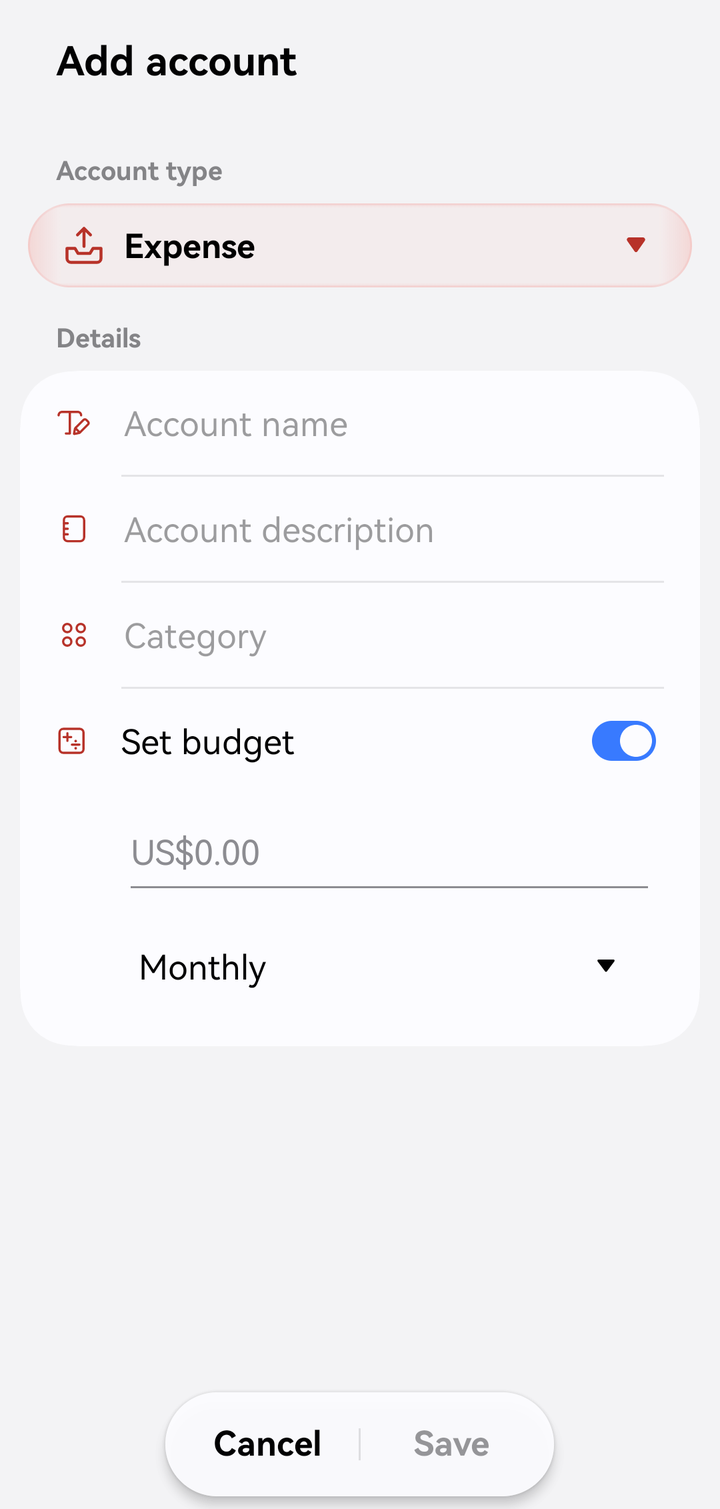
A monthly budget on an expense account
Check your budgets
- Reports › Budget (Budget vs actual) compares each account with its budget or target for the report period, with a progress bar and the share of the budget used, for this period and the comparison period. It turns orange as you near a budget and red when you go over. See Reports.
- The Budget overview widget on Home shows this month's spending against your budgets. Its ⋮ menu can hide amounts and set how many budgets to show; tap Show more for the rest.
- AI insights on Home warn you when an account is close to or over its budget, if AI is set up.
Budget alerts
Turn on Settings › Budget alerts to get a notification when an expense account reaches 80% of its budget, and again at 100%: for example "Groceries: 80% of budget used" or "Groceries is over budget".
No budgets showing? "No budgets or income targets yet. Go to Accounts, choose an account, and set a budget or income target." In the report's filter you can also turn on Show accounts without budgets or targets.